Friday, August 30, 2013

Enable Specific Office 365 Licenses using PowerShell

I found myself recently with the need to assign specific licenses within the Enterprise Pack to Office 365 users from PowerShell. This is fairly trivial from the Portal web interface, but when you assign a license using the following command it assigns ALL the licenses in the Enterprise Pack:

Set-MsolUserLicense -UserPrincipalName "lynctest@domain.com" -AddLicenses <Office365Sku>

This is fine if that is what you want, but my customer wanted to only assign the Lync Online license


So I set about trying to figure out how to do it. I found the pieces to the answer in several different places... so I figured I'd put it all together in one blog post.

First off... you need to get your account SKU

PS C:\scripts> Get-MsolAccountSku
AccountSkuId                    ActiveUnits     WarningUnits    ConsumedUnits
------------                    -----------     ------------    ----
somecustomer:ENTERPRISEPACK      1000            0               127


If you have more than one... pick the appropriate one and place that in the variable $office365sku below.

Okay... now pay attention... the next variable is the licenses we want to DISABLE. Yes that is right... we enable all the licenses first, and then we disable what we don't want. To see the different options enter this command:

PS C:\scripts> Get-MsolAccountSku | Where-Object {$_.SkuPartNumber -eq 'ENTERPRISEPACK'} | ForEach-Object {$_.ServiceStatus}

ServicePlan                             ProvisioningStatus
-----------                             ------------------
RMS_S_ENTERPRISE                        Success
OFFICESUBSCRIPTION                      Success
MCOSTANDARD                             Success
SHAREPOINTWAC                           Success
SHAREPOINTENTERPRISE                    Success
EXCHANGE_S_ENTERPRISE                   Success


The order above matches the order in the Portal web interface.

Just a side note, the "Office Web Apps" is not needed for Lync Online. The Office Web Apps license has to do with SharePoint Office Web Apps, not the Office Web Apps used with Lync Online.

So... in the $options variable below you need to modify the licenses you want to disable. Below is an example of the licenses disabled to only leave Lync Online enabled.

That's it... enjoy.


# Script to Enable Specific Office 365 Licenses using PowerShell
# Created By Jonathan McKinney (blog.lyncdialog.com)
# Time2Market 2013


$msoluser = "lynctest at domain.com"
$office365sku = "somecustomer:ENTERPRISEPACK"
$options = New-MsolLicenseOptions -AccountSkuId $office365sku -DisabledPlans RMS_S_ENTERPRISE,OFFICESUBSCRIPTION,SHAREPOINTWAC,SHAREPOINTENTERPRISE,EXCHANGE_S_ENTERPRISE

$transcriptname = “Office365License” + `
    (Get-Date -format s).Replace(“:”,”-”) +”.txt”
Start-Transcript $transcriptname

  Write-Host  `r
  Write-Host  `r`n 'Enable licenses for ' $msoluser `r`n
  Set-MsolUser -UserPrincipalName $msoluser -UsageLocation US
  Set-MsolUserLicense -UserPrincipalName $msoluser -AddLicenses $office365sku
  Set-MsolUserLicense -UserPrincipalName $msoluser -LicenseOptions $options
  Write-Host  `r


Stop-Transcript

Friday, August 16, 2013

Script to Automate the Connection to Lync Online

So you just saw that new Microsoft Download for Windows PowerShell Module for Lync Online... got you pretty excited right?!

At least until you finished the install and didn't read the documentation :-) were left wondering how to use it. Well don't fret any longer here is a handy script I've been using to connect. If you are running on a Windows 7 or other workstation you'll need to set your PowerShell Execution Policy.

# Script to Automate connection to Lync Online
# Created By Jonathan McKinney (blog.lyncdialog.com)
# Time2Market 2013


Import-Module LyncOnlineConnector

$cred = Get-Credential
$CsSession = New-CsOnlineSession -Credential $cred

Import-PSSession $CsSession

Write-Host  `r`n 'To get a list of available Lync Online commands Enter Get-Command -Module <ScriptNameAbove>' `r`n -ForegroundColor Yellow
Write-Host  `r`n 'To remove Remote Powershell Session Enter Get-PsSession and then Remove-PsSession -Id <ID number of session listed>' `r`n -ForegroundColor Yellow


Pretty neat, huh?

So what can you do once you have access? Mostly look around and wish you could change stuff.

Couple of useful things you can do... Set ACP info and Grant policies to users.

Here is how you set ACP info do it if your customer uses Intercall

Set-CsUserAcp -Identity "lynctest at domain.com" -Name "InterCall" -Domain "mslync.audiocontrols.net" -TollNumber "4255551234" -TollFreeNumbers "8665551234" -ParticipantPasscode "4255552345" -Url http://www.intercall.com/l/dial-in-number-lookup.php

Here is an example of how you can Grant no recording through a conferencing policy

Grant-CsConferencingPolicy "lynctest at domain.com" -PolicyName BposSAllModalityNoRec 

So... Ummm... how do you get a list of all the Policies available (since we can't change or add them)

Get-CsConferencingPolicy

Wow... big list eh?

or if you just want to see the names of the policies

Get-CsConferencingPolicy | select identity

Here is a list of commands that I have access to...

CommandType     Name
-----------     ----
Function        Copy-CsVoicePolicy
Function        Disable-CsMeetingRoom
Function        Enable-CsMeetingRoom
Function        Get-CsAudioConferencingProvider
Function        Get-CsClientPolicy
Function        Get-CsConferencingPolicy
Function        Get-CsDialPlan
Function        Get-CsExternalAccessPolicy
Function        Get-CsExUmContact
Function        Get-CsHostedVoicemailPolicy
Function        Get-CsImFilterConfiguration
Function        Get-CsMeetingConfiguration
Function        Get-CsMeetingRoom
Function        Get-CsOnlineUser
Function        Get-CsPresencePolicy
Function        Get-CsPrivacyConfiguration
Function        Get-CsPushNotificationConfiguration
Function        Get-CsTenant
Function        Get-CsTenantFederationConfiguration
Function        Get-CsTenantHybridConfiguration
Function        Get-CsTenantLicensingConfiguration
Function        Get-CsTenantPublicProvider
Function        Get-CsUserAcp
Function        Get-CsVoicePolicy
Function        Grant-CsClientPolicy
Function        Grant-CsConferencingPolicy
Function        Grant-CsDialPlan
Function        Grant-CsExternalAccessPolicy
Function        Grant-CsHostedVoicemailPolicy
Function        Grant-CsVoicePolicy
Function        New-CsEdgeAllowAllKnownDomains
Function        New-CsEdgeAllowList
Function        New-CsEdgeDomainPattern
Function        New-CsExUmContact
Function        Remove-CsExUmContact
Function        Remove-CsUserAcp
Function        Remove-CsVoicePolicy
Function        Set-CsExUmContact
Function        Set-CsMeetingConfiguration
Function        Set-CsMeetingRoom
Function        Set-CsPrivacyConfiguration
Function        Set-CsPushNotificationConfiguration
Function        Set-CsTenantFederationConfiguration
Function        Set-CsTenantHybridConfiguration
Function        Set-CsTenantPublicProvider
Function        Set-CsUser
Function        Set-CsUserAcp


Welcome to Lync Online PowerShell...

Friday, March 22, 2013

Lync Server 2013 Debugging Tools do not produce any output

The Problem

The Lync Server 2013 Debugging Tools that are installed separately have sparse output or not any output for debug logs for after you click "View Log Files" or "Analyze Log Files".

The easiest way you can verify this is by starting OCSLogger.exe and set a debug session for InboundRouting and set the "Level" to All and "Flags" to All Flags.


Start Logging and make a call from the PSTN in to your Lync Server 2013 system. When the call is completed hang up and click Stop Logging.

Click "View Log Files" and make sure "InboundRouting" is the only Log File selected. If you get a blank file then congratulations you came across the same problem I did.

The Fix!

The fix that was shared with me by those smarter than me :-) ...

Rename the default.tmx in the C:\Program Files\Microsoft Lync Server 2013\Debugging Tools directory

You need to copy default.tmx from
c:\Program Files\Common Files\Microsoft Lync Server 2013\Tracing
To
C:\Program Files\Microsoft Lync Server 2013\Debugging Tools

The file size of the default.tmx from the Tracing folder is approximately 18.9MB vs 5.57MB of the default.tmx that came with the debugging tools.

Start up OCSLogger.exe again after the procedure above and run the InboundRouting debug again. This time you should have output in the log file.

So far I have confirmed this impacts at least InboundRouting, OutboundRouting, SIPStack and S4. Being there is such a wide gap in size between the two files I seriously doubt these are the only areas affected.


Friday, March 1, 2013

Install-CsMirrorDatabase fails with SQL Service Domain Account in Internet-style format

Found an interesting gotcha with another Time2Market engineer today. When running the Install-CsMirrorDatabase command we ran into the following error.

“Mirroring cannot be setup unless SQL server service runs under a network service account, virtual account, local system account or a domain account.”

We knew the SQL Service account was a domain account already so I suggested a change from the format of "user at domain.com" to domain\user.

With that simple change the command ran successfully.

Thursday, September 13, 2012

My journey to unified communications over 13 years

I have not commuted to a corporate office for about 13 years. This isn't because I've been self employed, unemployed, or working as a consultant or sales traveling to my customers full time. This is purely enabled because of the technology I've had available to me and the willingness of my employers (yes multiple companies) to not care where I live. During those 13 years I moved 7 times... sometimes to another state.

I started this whole notion while I was a network manager at a University. The technology at the time was largely enabled by modem. The first step was hooking up a modem to one of our Windows NT servers and then I was able to manage the servers and network from anywhere I had a phone line. For a while it was largely an IT only thing, but I was the one that mostly used it. This meant I could totally work from home some days, but unfortunately with the type of work I did, which was just about everything IT related, I needed to be at the users computer sometimes.

Fast forward a couple of years and I was offered a job I couldn't refuse from Nortel. I lived in Lakewood, CO at the time and the manager that hired me lived in Hartford, CT. I asked him during the interview about location and working arrangements and his expectations. His reply in 1999 was a dream come true... "As long as you have a phone line and an airport nearby, I don't care where you live". Think about that statement even today. That kind of attitude toward hiring employees is unheard of.

One of the things that annoyed me fairly quickly with this working arrangement is that I had no idea when my manager was available... and working for Nortel he spent most of his days on conference calls either finding new jobs or working through issues on current jobs. I came up with the idea to use AOL Instant Messenger to be able to ping him with questions or find out when he could talk. I knew when he was in the office or away from his desk. When we were on conference calls we could exchange critical information between each other out-of band (though IM) and become much more effective and professional. Little did I know... this idea would be so prevalent 10 years later with Unified Communications.

Even though I worked out of my home, I traveled to do work for Nortel because a lot of it still was hardware and wires.

Quickly after my manager recognized the benefits of asynchronous communications, the whole Professional Services organization under him was required to get AOL Instant Messenger accounts so they could communicate the same way. Yes they still used phones, pagers, email, and all the other tech available at the time. But this was the best way to have conversations with the guy at the top. When he had a technical question he would just go down his AOL friends list until he found an engineer with the skillset to answer it.

Fast forward a few years and I switched over to ISDN with a real Nortel PBX phone in my home office and when the phone wasn't being used I had 128k to burn! My communications were now unified... but only from a layer 1 perspective. Data and voice traveled down the same pipe... but they didn't know about each other.

In the middle of my years working for Nortel I moved to Duncan, OK (don't worry it didn't last long) But part of this move was getting access to DSL. I started to use VPN for access to Nortel, but Voice over IP was really not capable of going across the Internet at the time. So I was still stuck using the PSTN to make and receive calls. Nortel used technology from MCI at the time called VNET which allowed me to receive calls and make calls as if I was in a Nortel corporate office. VNET Worked pretty well at the time and I was able to move from Colorado to Oklahoma and continue working for the same employer and manager. I still had to travel to do work for Nortel and cell phones largely replaced pagers while we were away from our home office.

After about a year and a half I moved back to Colorado and switched to Cable modem, but for the most part the way I communicated when I worked didn't really change for about a year.

In the early 2000s (I don't remember when for sure). I moved into an apartment with a wireless ISP provided. Nortel at the time started to play around with a new technology called SIP. Up until this point when I worked with VoIP it usually involved H.323. The product for the enterprise at the time was called Succession MX. The enterprise product started out as a carrier IMS platform, but was quickly recognized to be something that corporations might pay for. I got up on the dog food trial inside Nortel and became instantly hooked with SIP. Instant Message, Presence, and Voice were built into the product and I realized immediately this was the future of communications. I showed it to my manager (which was still the same one from 1999) and he felt the same way. One of the key pieces of technology that made this solution viable was a packet loss concealment algorithm called Global IP Sound (eventually this was worked into most Nortel endpoints). Even though I frequently would lose packets on the wireless ISP I could hold conversations with others and rarely would notice the problem.

I managed to get some of the other engineers on the dog food trial, but could get them all so we unfortunately still did most of our communications through AOL instant messenger, email, cell phones, and the PSTN.

When the product finally shipped it became known as MCS 5100 and the Nortel IT dept deployed it for internal employees as well. My manager moved everyone over to it recognizing the benefit of having everyone on an internal system rather than using a 3rd party AOL to conduct company business. This is when I recognized that a great technology doesn't mean much until you have others you work with using the same technology.

Although Nortel did know how to build great technology, Nortel did not know how to market new ideas. The whole notion of Unified Communications was a foreign concept to every single business. When I was working on another product, the customer would always be amazed that I could start VPN and a single piece of software and start communicating as if I was in the office. When I told the sales people about the possible lead most of them had no idea what product I was talking about. When I would show the sales person the technology they were amazed... but rarely did I see any sales from these leads.

Although there were a handful of customer successes. The product never hit critical mass and if it was purchased it was mostly for its ability to handle large dial-in conferences (called MeetMe Conferencing) and the rest of the product was not understood or forgotten about.

Microsoft around the same time was working with Live Communications Server 2003 and 2005 and when the Innovative Communications Alliance was created in 2006 between Nortel and Microsoft I knew this was where I needed to be. I joined when I could find an opening and the first Microsoft UC product I was exposed to was Office Communications Server 2007 (R1). It wasn't hard for me to pick up this new product because the concepts were very similar to MCS 5100.

My world was still divided because for day to day communications I used MCS 5100, but when I did any deployments it was around Microsoft Unified Communications integrating with a Nortel PBX. This was the now defunct RCC with dual forking solution that was rarely understood how to deploy and feared by all. To this day, I know only three people in the world counting myself that actually fully understood how this worked. When setup correctly it really was the best of both worlds. But if it broke it was a complete nightmare to troubleshoot.

I did the RCC with Dual Forking deployments for a couple years and moved over to Avaya when they acquired Nortel Enterprise Solutions. I lasted three months before Avaya decided they didn't want any part of the Innovative Communications Alliance and laid off every Microsoft related employee I knew of. The vast majority of those people laid off from the Innovative Communications Alliance went to go work for competitors, mostly Microsoft Partners. These were engineers that had on average 10 years experience working with communications technologies and some of them were 20-30+ years working for Nortel. If I was the person at Avaya that made that call...looking back, I'd probably have regretted that decision.

So in 2009, I was kicked out the door at Avaya and I moved over to a Microsoft Gold Partner called Time2Market and started to deploy OCS and Lync to integrate with or replace PBXs. My first job was to replace 12 Avaya PBXs with OCS 2007 R2. Replace... not integrate.

Telecommuting wise I was now fully on Microsoft OCS 2007 R2 with Lync 2010 right around the corner. No more VPN. No more divided between a Nortel and Microsoft world. I expected I would travel at least 50% of the time for deployments and this was true for OCS 2007 R2, but as soon as Microsoft Lync 2010 became available, I rarely travel anymore. Most customers are content to work with me remotely. They don't have to baby-sit me... they don't have to pay for my travel expenses...when Federation is setup, working on a problem with them is a click away.

Without Federation and Remote User Access (with no VPN), you really don't have Unified Communications. You shouldn't have to be tied to a desk, or jump through hoops to get to where you can communicate. Unified Communications is about communicating with who you want, when you want, where you want, and how you want. I had all this in various different forms over the years... but they were not all in one single product and easy to use. Even my wife who hates technology uses Lync to communicate with me while I'm working (from her iPhone, with a mobile client).

I'm just waiting for the rest of the world to catch up to figure out they can move bits around instead of atoms.

Wednesday, July 25, 2012

Gotcha's for AT&T SIP Trunks

I've been involved in the deployment of AT&T SIP Trunks for a couple customers recently and a few Gotcha's have been consistent between them.

911
First off, do not expect 911 calls to work immediately. AT&T SIP Trunks take up to 24 hours to populate all the necessary databases with the numbers and addresses. Ask the account team to verify that all the billing addresses associated with your SIP Trunk are correct. AT&T made a mistake in this area and caused one of my customers to not have 911 service for 5 days while it was sorted out.

Referred-by Header
This is absolutely required for certain call forward and call transfer scenarios and is fairly typical requirement for SIP Trunks in general. The details for this configuration are contained in KB Article 2500421.

Transcoding
Calls to certain numbers fail with a 488 Not Acceptable Here and in the diagnostic header there is a "cause=65". These calls are completely fine when you dial from another PSTN device such as a cell phone. Most of the time I've found that this is another AT&T SIP Trunk customer that has only one codec they can negotiate and you have a different codec. AT&T does not do any transcoding (which makes zero sense to me). In order for the calls to work you need to make sure you have at least G.729 and G.711 codecs in your allowed list and order them for your preference.

Enjoy...

Tuesday, April 24, 2012

How to remotely view and test certificate, intermediate certs, and root certificate

There are a few instances during a Lync deployment (Edge, Mobility, EWS) when you need to see all the information about a public certificate, but you do not have easy access to the system that contains the certificate, intermediates, and root certificates.

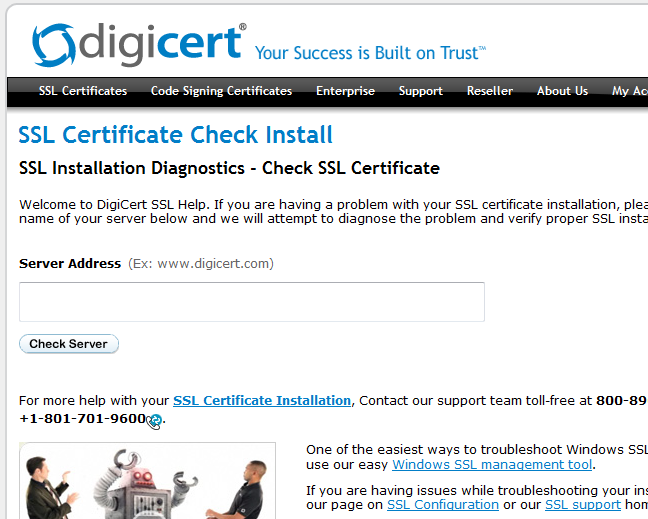
I have found the help page at Digicert to give me all the information I need, even if the certificate is not issued by Digicert.


Normally you would just type in a server name and off it goes and queries port 443 by default. That works great if you are testing a cert on port 443. But if you have a cert of port 5061?

it is as easy as <Server Name>:5061

Digicert SSL Certificate Check returns the certificate with Common Name, Subject Alternative Names, and Issuer. Most importantly though, if you look further down you will see the entire certificate chain.


Having this information is especially handy if you are dealing with GoDaddy certs.